PulsePoint Respond
CPR-Needed Alert Readiness Widget
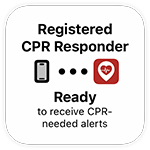
By continuously monitoring key settings such as responder type registration, notification selections, and location sharing, the CPR-Needed Alert Readiness Widget provides a glanceable interactive tile that confirms your device is properly configured—or warns you of any issue that would prevent receiving an emergency alert. Tap the widget to see details and guidance for resolving any problems.
Requires v4.27 or greater.


CPR-Needed Alert Readiness Widget
Add the widget to your Home Screen
- Go to the Home Screen, then scroll to the Home Screen page where you want to add the widget.
- Touch and hold the background until the app icons begin to jiggle, tap + or Edit at the top of the screen, then tap Add Widget.
- Scroll or search to find the PulsePoint widget, tap it, then tap Add Widget.
- While the app icons are still jiggling, drag the widget to where you want it, then tap Done.
In addition to Ready or Not Ready, the widget displays your Responder type: Public CPR Responder, Registered CPR Responder, or Professional Responder. Check that your displayed responder type is accurate, as this determines which alerts you receive. The widget also detects when the device has no network connection and displays 'Network Offline' in place of the responder type.
If your device does not have a significant location change, but remains in use, the widget will update the device location approximately once an hour. This prevents the device from becoming ineligible for alerts after 24 hours of no movement.
Click ⛶ in the upper right corner of the phone image to enlarge screen.
CPR-Needed Alert Readiness Widget
Troubleshooting Readiness Issues
Tapping the widget tile will launch the CPR-Needed Alert troubleshooting tool within the app. This tool provides a detailed analysis of all relevant settings and permissions. Issues requiring your attention are highlighted in red along with resolution steps, and are hyperlinked to the relevant settings pages for quick access.
After resolving any issues, use the Send Test Alert button to verify your device receives notifications properly.
The troubleshooting tool can also be accessed directly from within the app. Navigate to the Notifications page (bell icon in footer menu), then tap the ellipsis icon (…) in the app header.
Click ⛶ in the upper right corner of the phone image to enlarge screen.


